Brand
Get all logo versions.
Download 

Diagram your code from Google Antigravity
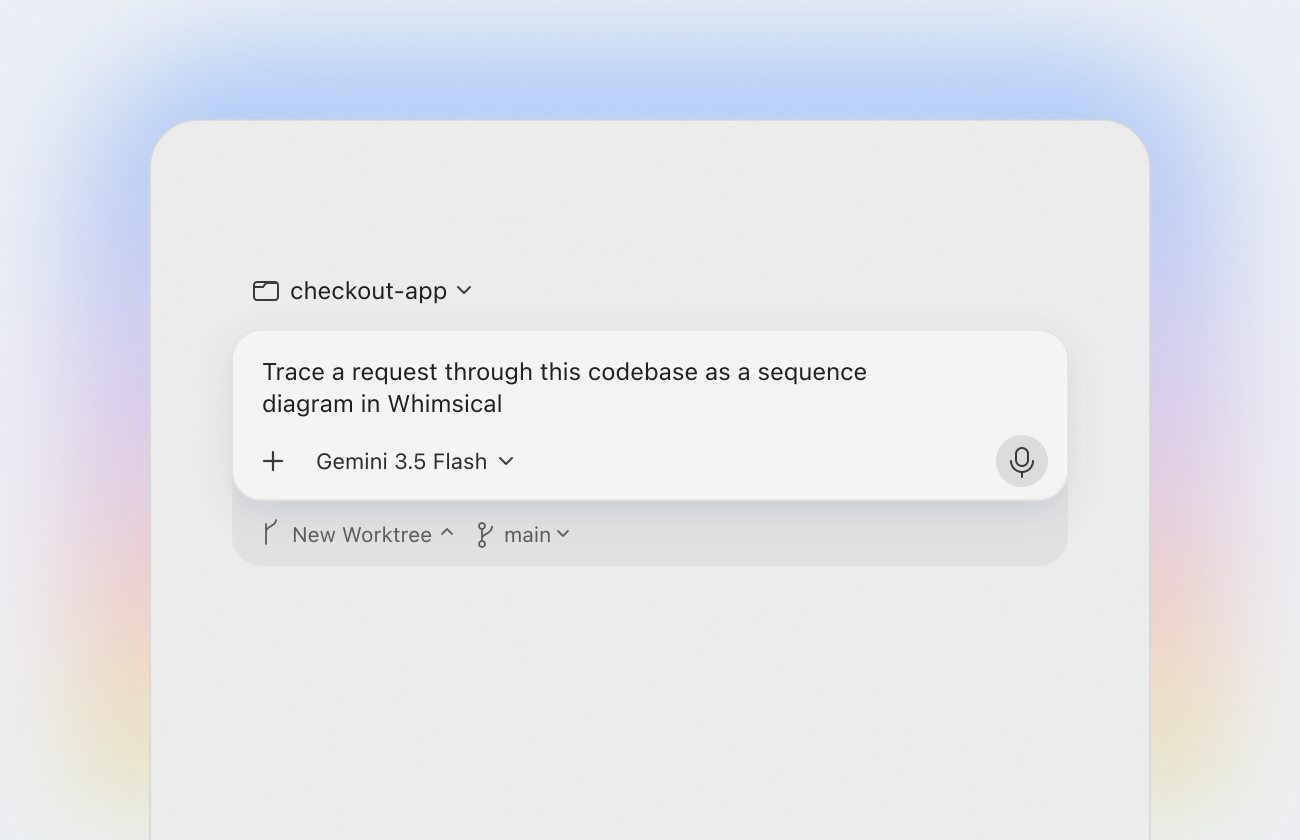
Google Antigravity runs coding agents in its app, IDE and CLI. Connect it to Whimsical and those agents can draw what they find: a sequence diagram of a request moving through your code, an architecture map of a repo, or wireframes of the screens you’re about to build. Everything lands on an editable board your team can open.
In the CLI, type /mcp to check that whimsical is connected.
Antigravity keeps a separate sign-in for each surface, so authenticate once in every one you use (app, IDE and CLI).
Add a whimsical entry with "serverUrl": "https://mcp.whimsical.com/mcp" to your Antigravity MCP config, then click Authenticate next to whimsical and paste the authorization code from your browser back into Antigravity. The IDE and CLI share the config at ~/.gemini/config/mcp_config.json, but each one signs in separately.
Antigravity’s agents can create and edit sequence diagrams, architecture diagrams, flowcharts, and wireframes in your Whimsical workspace. They can also read your existing boards, so you can sketch screens in Whimsical first and ask Antigravity to build from them.
Yes. Antigravity CLI, which replaced Gemini CLI in June 2026, reads the same ~/.gemini/config/mcp_config.json as the Antigravity IDE, so Whimsical works there once it’s in that file. Type /mcp in the CLI to check that whimsical is connected.