

- What is Whimsical?
- Getting started with flowcharts
- Getting started with mind maps
- Getting started with wireframes
- What can you do with Whimsical?
- Using Whimsical Boards
- How to create a new workspace
- AI-assisted mind mapping
- Working with Whimsical's infinite canvas
- 5 ways to create a new file
- Customizing file and folder icons
- Mentions in Whimsical files
- Customizing diagram shapes
- Getting started with sequence diagrams
- Using the command menu
- Getting started with flowcharts
- Getting started with mind maps
- Getting started with wireframes
- Using Whimsical Boards
- Mentions in Whimsical files
- Customizing diagram shapes
- Using sections on the Whimsical canvas
- Sketch on the canvas with freehand drawing
- Annotating files for more detail
- Adding and displaying links in Whimsical files
- Linking to sections and objects
- Uploading files to Whimsical
- How to draw a line
- How to filter selected objects
- Markdown support in Whimsical
- Presenting in Whimsical
- Voting on sticky notes
- Using the timer in boards
- Working with the grid and auto-alignment
- Working with connectors
- Does Whimsical have cloud architecture icons?
- Using tables in Whimsical
- Using sticky notes in boards
- Optimizing performance in larger boards
- Using spellcheck
- Setting custom thumbnails
- How overlays work in Wireframe mode
- Why are the colors of some board items toned down?
- Syntax highlighting in code blocks
- How to add emojis
- Commenting in Whimsical files
- Hiding cursors while collaborating
- Measure between objects in Boards
- Getting started with sequence diagrams
- Keeping boards tidy with alignment, distribution, and auto-layout
- Save default object style
- Import
- Text-to-object pasting options
- Working with Mermaid code in Whimsical
- Whimsical Agent
- Whimsical app for ChatGPT
- AI-assisted mind mapping
- AI Supplementary Terms
- Whimsical connector for Claude
- Whimsical connector for Grok
- How to get the most from your AI credits
- Using Whimsical with Microsoft Copilot Studio
- Whimsical plugin for Cursor
- MCP
- Whimsical MCP
- Whimsical MCP - supported tools
- Teams, workspaces & sections explained
- Free viewers commenting in workspaces
- Team FAQs
- Customizing file and folder icons
- Collaborating with others in real time
- Sharing files and managing access permissions
- How to switch between workspaces
- How to draw a line
- How to filter selected objects
- Markdown support in Whimsical
- Does Whimsical have cloud architecture icons?
- Embedding external content into Whimsical
- How overlays work in Wireframe mode
- Moving and copying files
- Using Whimsical on mobile
- File version history
- Why are the colors of some board items toned down?
- Does Whimsical support offline mode?
- Does Whimsical work on iPad?
- Whimsical desktop app
- Is Whimsical available in other languages?
- Inverting the zoom direction in Whimsical so it works more like Sketch
- Troubleshooting issues and reporting bugs
- How to add emojis
- How to restore deleted files from the trash
- Searching in your Whimsical workspace
- Organizing files in your workspace
- I’ve upgraded but still don’t have access to the paid features
- Why can't I edit my files?
- Reporting content in Whimsical
- Does Whimsical have an affiliate or referral program?
- Hiding cursors while collaborating
- Sharing feedback and feature requests
- Dark mode in Whimsical
- Notification inbox
- How to change or reset your password
- Inverting the zoom direction in Whimsical so it works more like Sketch
- Customizing your notifications in Whimsical
- How to verify your Whimsical account
- How to delete your account
- Adding your name and avatar to your account
- Changing your account email address, or adding a new one
- Updating the credit card details on your account
- How billing works in workspaces
- Updating your billing information
- I’ve upgraded but still don’t have access to the paid features
- How to cancel your subscription
- Pricing and discounts
- Where are my invoices
- Understanding your Whimsical invoice
- Sales tax and VAT
- How to create a new workspace
- Teams, workspaces & sections explained
- Free viewers commenting in workspaces
- Requesting file access
- Workspace discovery settings
- Sorting files and folders
- Changing workspace members’ roles
- Adding and removing members
- Team FAQs
- Creating and managing teams
- Requesting workspace editor access
- Linking between files
- Member roles in Whimsical
- How to delete a workspace
- How to upgrade your workspace
- Guest access
- Changing your workspace name, logo, or URL
- Collaborating with others in real time
- Offboarding users
- Sharing files and managing access permissions
- How to switch between workspaces
- Consolidating workspaces
- Uploading files to Whimsical
- SAML
- Setting up SAML session expiry
- Security
- Prevent new workspace creation
- Export
- Exporting content from Whimsical
- Embedding Whimsical files
- Import
- Importing to Whimsical
- Text-to-object pasting options
- Working with Mermaid code in Whimsical
- Switching to Whimsical
- Moving from Miro to Whimsical
- Moving from FigJam to Whimsical
- Moving from Lucidchart to Whimsical
- Moving from Lucidspark to Whimsical
- Moving from Excalidraw to Whimsical
- Moving from tldraw to Whimsical
- Moving from Canva to Whimsical
- Moving from Visio to Whimsical
- Moving from Mural to Whimsical
- Whimsical app for ChatGPT
- Whimsical connector for Claude
- Whimsical connector for Grok
- Embedding & integrating boards with Jira Issues
- Integrating Whimsical with Google Docs
- Embedding files in ClickUp views
- Embedding files in Asana
- Creating Jira & Confluence Smart Links for Whimsical Files
- Embedding files in Guru
- Embedding files in Trello
- Embedding & integrating boards in Notion
- Integrating Whimsical and GitHub
- Embedding files in Zendesk
- Support Whimsical embeds in your app with EmbedKit
- Whimsical previews and notifications in Slack
- Embedding files in Canva
- Integrating Whimsical and Linear
- Embedding files in Nuclino
- Embedding files in Monday
- Embedding files in Medium
- Embedding files in Slab
- Embedding files in Coda
- Whimsical API (Beta)
- Embedding boards in Obsidian
- Using Whimsical with Microsoft Copilot Studio
- Export
- Embedding Whimsical files
- MCP
- Whimsical MCP
- Whimsical MCP - supported tools
- Reporting content in Whimsical
- SAML
- SAML SSO in Whimsical
- SAML SSO with Okta
- Setting up SAML session expiry
- SAML SSO with Auth0
- SAML SSO with OneLogin
- SAML SSO with Microsoft Entra ID (Azure AD)
- SAML SSO with Google Workspace (previously G-Suite)
- SAML SSO with Active Directory Federation Services (ADFS)
- SAML SSO with other identity providers
- Managing email changes with SAML and SCIM
- SCIM
- Setting up SCIM with Okta
- Setting up SCIM with JumpCloud
- Setting up SCIM with Entra ID (Azure AD)
- SCIM provisioning with Groups in Okta
- SCIM user provisioning in Whimsical
- SCIM provisioning with Groups in Entra ID (Azure AD)
- Security
- Setting up Two-factor Authentication (2FA)
- Prevent new workspace creation
- Whitelisting Whimsical domains
- Signing in with your Whimsical account on multiple devices
- Contact us
Keeping boards tidy with alignment, distribution, and auto-layout
Moving at the speed of thought is great, but things can get a little messy sometimes. This article highlights some of the easy ways to tidy up your Whimsical boards.
When you select two or more objects on a board, the context menu shows a set of controls for aligning, distributing, and (in some cases) automatically laying out your selection:
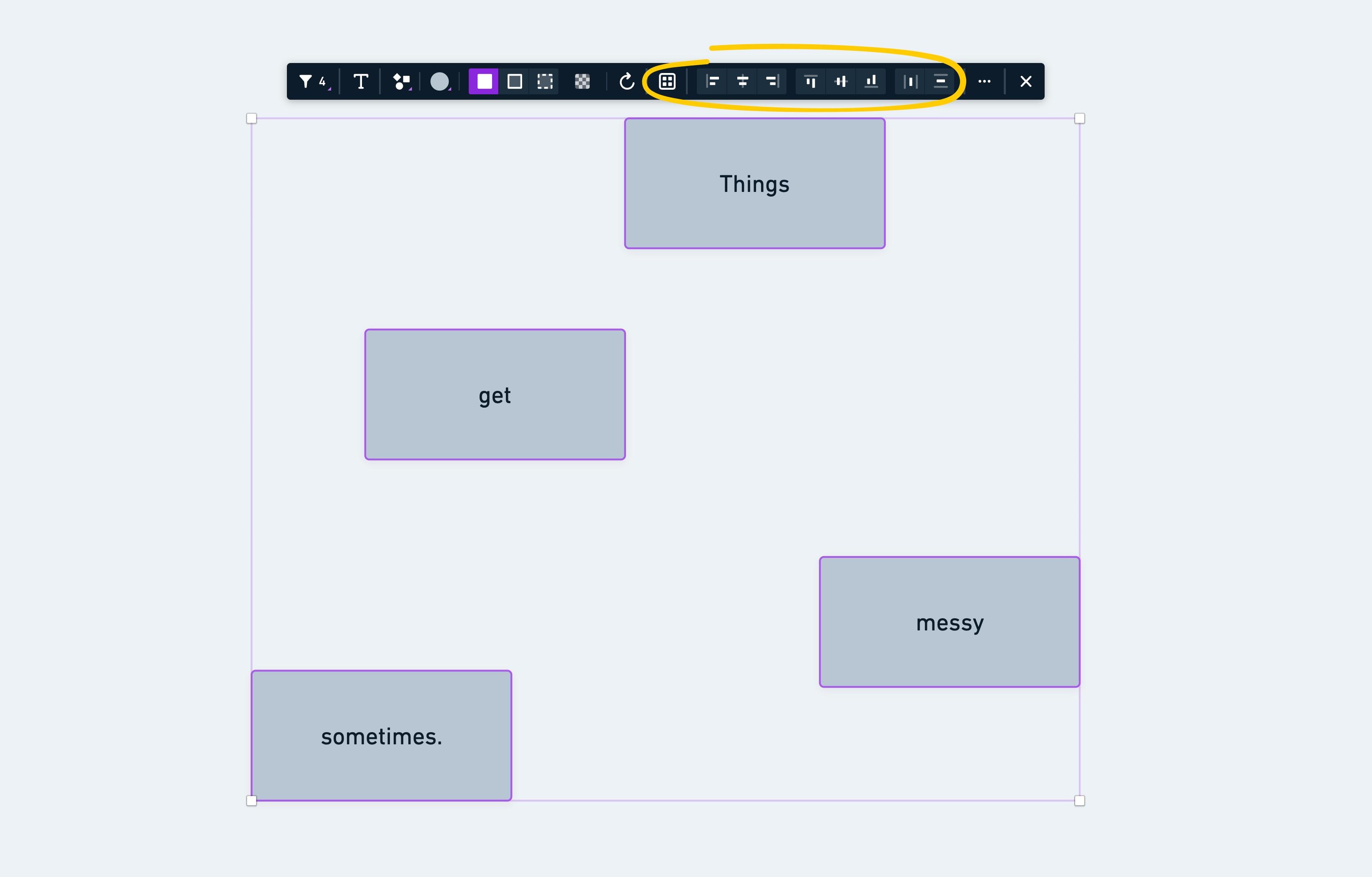
Each of these options also has a keyboard shortcut, or can be accessed in the command menu.
Aligning a selectionCopied!Link to this section
There are six ways to align objects:
- Align left
- Align right
- Align top
- Align bottom
- Center horizontally
- Center vertically
Alignment uses the outermost edges of your selection as the reference.
E.g.: Align left moves all objects so their left edges match the leftmost object in the selection.
Centering (obviously) uses the center point of your objects as reference. 😉
Distributing a selectionCopied!Link to this section
Distribution requires at least three objects. It spaces objects evenly between the outermost items in your selection.
- Distribute horizontally spaces objects equally along the horizontal axis.
- Distribute vertically spaces objects equally along the vertical axis.
- Distribute grid arranges objects into an evenly spaced grid, adjusting both horizontal and vertical spacing at once.
Note: Grid distribution is only available for Sticky notes.
Auto-layoutCopied!Link to this section
Auto-layout re-arranges a selection of connected objects into a clean, structured flow.
Select at least two non-connector objects, then choose a direction:
- Lay out vertically: Objects flow from top to bottom.
- Lay out horizontally: Objects flow from left to right.
Both options are also available in the command menu. Connectors between the selected objects are re-routed automatically to fit the new arrangement.
Auto-layout supports:
- Diagram shapes
- Sticky notes
- Icons
- Images
- Links
- Text objects
Important: Auto-layout will not appear in the context bar when the board is in Wireframe mode. Press Q to exit Wireframe mode.