

- What is Whimsical?
- Getting started with flowcharts
- Getting started with mind maps
- Getting started with wireframes
- What can you do with Whimsical?
- Using Whimsical Boards
- How to create a new workspace
- AI-assisted mind mapping
- Working with Whimsical's infinite canvas
- 5 ways to create a new file
- Customizing file and folder icons
- Mentions in Whimsical files
- Customizing diagram shapes
- Getting started with sequence diagrams
- Using the command menu
- Getting started with flowcharts
- Getting started with mind maps
- Getting started with wireframes
- Using Whimsical Boards
- Mentions in Whimsical files
- Customizing diagram shapes
- Using sections on the Whimsical canvas
- Sketch on the canvas with freehand drawing
- Annotating files for more detail
- Adding and displaying links in Whimsical files
- Linking to sections and objects
- Uploading files to Whimsical
- How to draw a line
- How to filter selected objects
- Markdown support in Whimsical
- Presenting in Whimsical
- Voting on sticky notes
- Using the timer in boards
- Working with the grid and auto-alignment
- Working with connectors
- Does Whimsical have cloud architecture icons?
- Using tables in Whimsical
- Using sticky notes in boards
- Optimizing performance in larger boards
- Using spellcheck
- Setting custom thumbnails
- How overlays work in Wireframe mode
- Why are the colors of some board items toned down?
- Syntax highlighting in code blocks
- How to add emojis
- Commenting in Whimsical files
- Hiding cursors while collaborating
- Measure between objects in Boards
- Getting started with sequence diagrams
- Keeping boards tidy with alignment, distribution, and auto-layout
- Save default object style
- Import
- Text-to-object pasting options
- Working with Mermaid code in Whimsical
- Whimsical Agent
- Whimsical app for ChatGPT
- AI-assisted mind mapping
- AI Supplementary Terms
- Whimsical connector for Claude
- Whimsical connector for Grok
- How to get the most from your AI credits
- Using Whimsical with Microsoft Copilot Studio
- Whimsical plugin for Cursor
- MCP
- Whimsical MCP
- Whimsical MCP - supported tools
- Teams, workspaces & sections explained
- Free viewers commenting in workspaces
- Team FAQs
- Customizing file and folder icons
- Collaborating with others in real time
- Sharing files and managing access permissions
- How to switch between workspaces
- How to draw a line
- How to filter selected objects
- Markdown support in Whimsical
- Does Whimsical have cloud architecture icons?
- Embedding external content into Whimsical
- How overlays work in Wireframe mode
- Moving and copying files
- Using Whimsical on mobile
- File version history
- Why are the colors of some board items toned down?
- Does Whimsical support offline mode?
- Does Whimsical work on iPad?
- Whimsical desktop app
- Is Whimsical available in other languages?
- Inverting the zoom direction in Whimsical so it works more like Sketch
- Troubleshooting issues and reporting bugs
- How to add emojis
- How to restore deleted files from the trash
- Searching in your Whimsical workspace
- Organizing files in your workspace
- I’ve upgraded but still don’t have access to the paid features
- Why can't I edit my files?
- Reporting content in Whimsical
- Does Whimsical have an affiliate or referral program?
- Hiding cursors while collaborating
- Sharing feedback and feature requests
- Free plan limits
- Dark mode in Whimsical
- Notification inbox
- How to change or reset your password
- Inverting the zoom direction in Whimsical so it works more like Sketch
- Customizing your notifications in Whimsical
- How to verify your Whimsical account
- How to delete your account
- Adding your name and avatar to your account
- Changing your account email address, or adding a new one
- Updating the credit card details on your account
- How billing works in workspaces
- Updating your billing information
- I’ve upgraded but still don’t have access to the paid features
- How to cancel your subscription
- Pricing and discounts
- Where are my invoices
- Understanding your Whimsical invoice
- Sales tax and VAT
- How to create a new workspace
- Teams, workspaces & sections explained
- Free viewers commenting in workspaces
- Requesting file access
- Workspace discovery settings
- Sorting files and folders
- Changing workspace members’ roles
- Adding and removing members
- Team FAQs
- Creating and managing teams
- Requesting workspace editor access
- Linking between files
- Member roles in Whimsical
- How to delete a workspace
- How to upgrade your workspace
- Guest access
- Changing your workspace name, logo, or URL
- Collaborating with others in real time
- Offboarding users
- Sharing files and managing access permissions
- How to switch between workspaces
- Consolidating workspaces
- Uploading files to Whimsical
- SAML
- Setting up SAML session expiry
- Security
- Prevent new workspace creation
- Export
- Exporting content from Whimsical
- Embedding Whimsical files
- Import
- Importing to Whimsical
- Text-to-object pasting options
- Working with Mermaid code in Whimsical
- Switching to Whimsical
- Moving from Miro to Whimsical
- Moving from FigJam to Whimsical
- Moving from Lucidchart to Whimsical
- Moving from Lucidspark to Whimsical
- Moving from Excalidraw to Whimsical
- Moving from tldraw to Whimsical
- Moving from Canva to Whimsical
- Moving from Visio to Whimsical
- Moving from Mural to Whimsical
- Moving from draw.io to Whimsical
- Moving from Microsoft Whiteboard to Whimsical
- Whimsical app for ChatGPT
- Whimsical connector for Claude
- Whimsical connector for Grok
- Embedding & integrating boards with Jira Issues
- Integrating Whimsical with Google Docs
- Embedding files in ClickUp views
- Embedding files in Asana
- Creating Jira & Confluence Smart Links for Whimsical Files
- Embedding files in Guru
- Embedding files in Trello
- Embedding & integrating boards in Notion
- Integrating Whimsical and GitHub
- Embedding files in Zendesk
- Support Whimsical embeds in your app with EmbedKit
- Whimsical previews and notifications in Slack
- Embedding files in Canva
- Integrating Whimsical and Linear
- Embedding files in Nuclino
- Embedding files in Monday
- Embedding files in Medium
- Embedding files in Slab
- Embedding files in Coda
- Whimsical API (Beta)
- Embedding boards in Obsidian
- Using Whimsical with Microsoft Copilot Studio
- Export
- Embedding Whimsical files
- MCP
- Whimsical MCP
- Whimsical MCP - supported tools
- Reporting content in Whimsical
- SAML
- SAML SSO in Whimsical
- SAML SSO with Okta
- Setting up SAML session expiry
- SAML SSO with Auth0
- SAML SSO with OneLogin
- SAML SSO with Microsoft Entra ID (Azure AD)
- SAML SSO with Google Workspace (previously G-Suite)
- SAML SSO with Active Directory Federation Services (ADFS)
- SAML SSO with other identity providers
- Managing email changes with SAML and SCIM
- SCIM
- Setting up SCIM with Okta
- Setting up SCIM with JumpCloud
- Setting up SCIM with Entra ID (Azure AD)
- SCIM provisioning with Groups in Okta
- SCIM user provisioning in Whimsical
- SCIM provisioning with Groups in Entra ID (Azure AD)
- Security
- Setting up Two-factor Authentication (2FA)
- Prevent new workspace creation
- Whitelisting Whimsical domains
- Signing in with your Whimsical account on multiple devices
- Contact us
Multi-page files
Keep every part of a project together without jumping between separate files. Multi-page files bring related boards, folders, and docs together as pages in one file (much like sheets in a spreadsheet) making your work easier to organize, navigate, share, and collaborate on.
What is a multi-page file?Copied!Link to this section
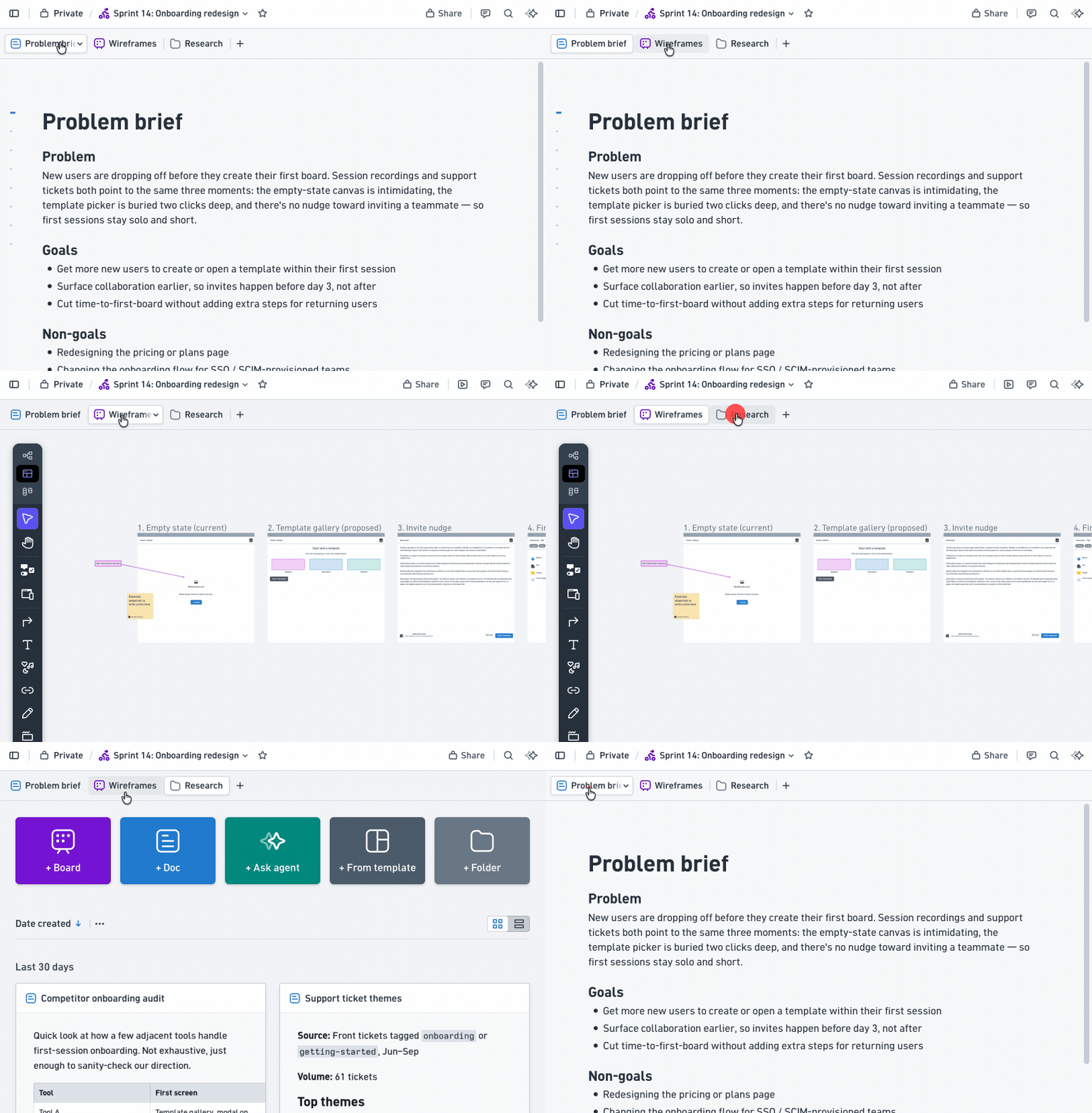
A multi-page file is a single file that holds more than one page. Instead of a simple list or grid, multi-page files let you arrange your content in the header, so you can switch between pages like this:
Why use pages?Copied!Link to this section
Multi-page files are great for organizing all the work for a specific project, client, or time period.
Here are some example use cases:
- A product launch, with pages for strategy and positioning, early concept maps, feature specs, launch timelines, and post-launch retrospectives.
- A design sprint, starting with the problem brief, followed by research synthesis, ideation boards, wireframes, and decision logs.
- A quarterly planning cycle, with one page for goals and OKRs, others for initiative breakdowns, dependency maps, and weekly check-in boards.
- A client engagement, where each page represents a phase, like discovery, concepts, iterations, and final delivery.
- A personal knowledge hub, group your reading notes, learning maps, experiments, and reflections for a specific theme or time period.
Tip: Pages are also a simple way to work across several files at once. There's no need to go back and forth to open a different file.
How to add a pageCopied!Link to this section
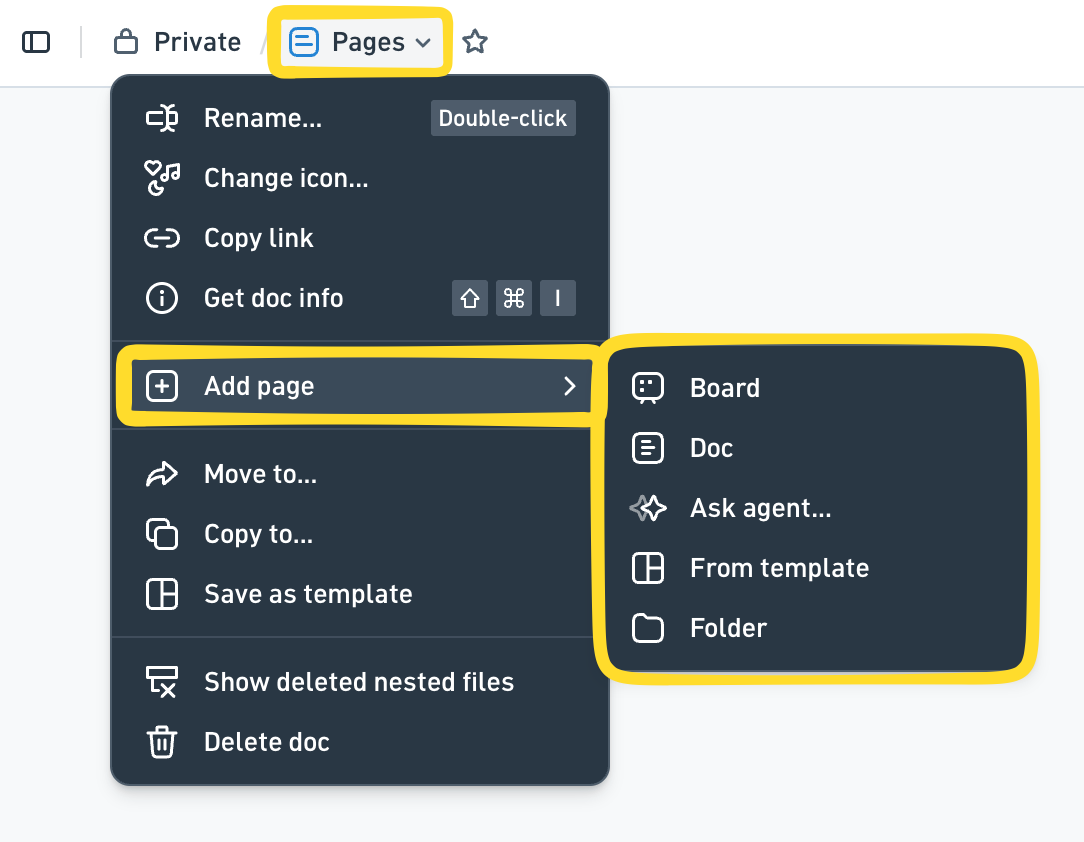
Adding a page converts your board, doc, or folder into a multi-page file. Open it, click the actions menu in the titlebar, and choose Add page:
Once a file has pages, click the + button next to the last tab to add another. This opens the Create new window, where you choose what to add:

You can also add a page from the command menu.
What you can add as a multifile pageCopied!Link to this section
- Board
- Doc
- Ask agent... - a page the Whimsical agent creates from your prompt
- From template - a new page from any template in the template browser
- Folder - a folder page, which shows its contents as a regular list
- Adding a page will convert the original standalone board, doc or folder to a multi-page file.
- When you add the first page to an existing file, that file becomes the first page and keeps its own link, so anything you’ve already shared or bookmarked still works.
- You can also add an existing board, doc, or folder as a page by moving it into the multi-page file.
- The multi-page file takes over the original file’s name, icon, color, and sharing settings, and keeps its place in your workspace.
Renaming, reordering, and deleting pagesCopied!Link to this section
- To rename a page, double-click its name on the tab, or choose Rename from the tab's actions menu.
- To change a page's icon, double-click the icon on its tab, or choose Change icon from the tab's actions menu.
- To reorder pages, drag a tab to a new position.
- To delete a page, click its tab and choose Delete.
- To remove a page from the multi-page file, drag it out in the left sidebar or move it to a different location.
- Deleting a page doesn’t delete the file it lives in. If you delete every page, the file stays and shows the new file banner so you can start again.
- To restore a deleted page, open the file's actions menu and choose Show deleted pages. A panel opens on the right where you can restore a page or delete it permanently.
Ungrouping pagesCopied!Link to this section
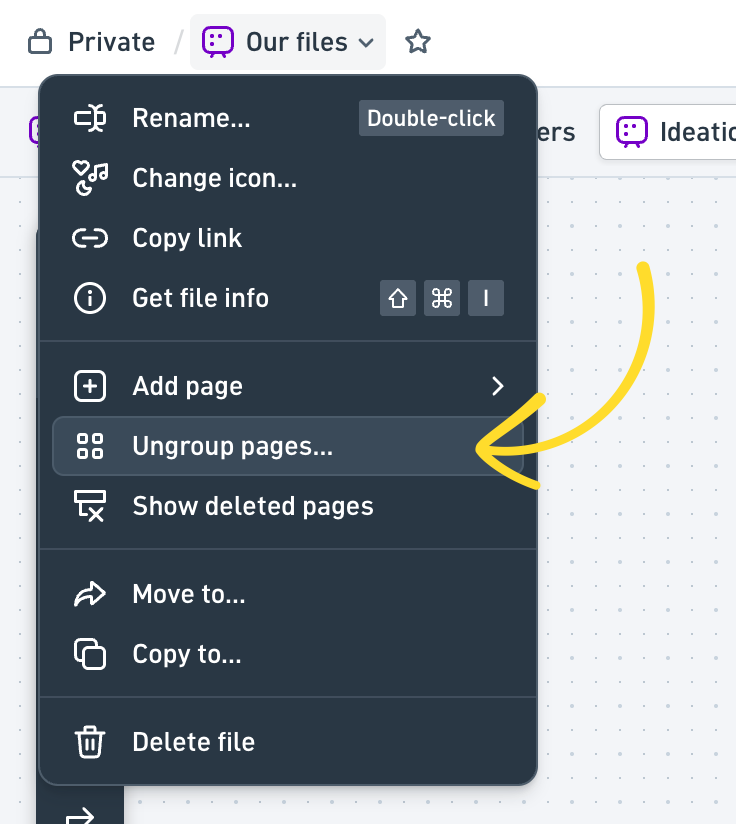
If you no longer want your pages bundled together, you can split them back into separate files. Open the file's actions menu and choose Ungroup pages..., then confirm.
All pages move to the location the multi-page file was in, keeping their order, and the multi-page file itself is deleted.
Sharing multi-page filesCopied!Link to this section
When sharing a multi-page file, permissions are set on the whole file bundle, so changing who can access it applies to every page inside.