

- What is Whimsical?
- Getting started with flowcharts
- Getting started with mind maps
- Getting started with wireframes
- What can you do with Whimsical?
- Using Whimsical Boards
- How to create a new workspace
- AI-assisted mind mapping
- Working with Whimsical's infinite canvas
- 5 ways to create a new file
- Customizing file and folder icons
- Mentions in Whimsical files
- Customizing diagram shapes
- Getting started with sequence diagrams
- Using the command menu
- Getting started with flowcharts
- Getting started with mind maps
- Getting started with wireframes
- Using Whimsical Boards
- Mentions in Whimsical files
- Customizing diagram shapes
- Using sections on the Whimsical canvas
- Sketch on the canvas with freehand drawing
- Annotating files for more detail
- Adding and displaying links in Whimsical files
- Linking to sections and objects
- Uploading files to Whimsical
- How to draw a line
- How to filter selected objects
- Markdown support in Whimsical
- Presenting in Whimsical
- Voting on sticky notes
- Using the timer in boards
- Working with the grid and auto-alignment
- Working with connectors
- Does Whimsical have cloud architecture icons?
- Using tables in Whimsical
- Using sticky notes in boards
- Optimizing performance in larger boards
- Using spellcheck
- Setting custom thumbnails
- How overlays work in Wireframe mode
- Why are the colors of some board objects toned down?
- Syntax highlighting in code blocks
- How to add emojis
- Commenting in Whimsical files
- Hiding cursors while collaborating
- Measure between objects in Boards
- Getting started with sequence diagrams
- Keeping boards tidy with alignment, distribution, and auto-layout
- Save default object style
- Import
- Text-to-object pasting options
- Mermaid code in Whimsical
- Whimsical Agent
- Whimsical app for ChatGPT
- AI-assisted mind mapping
- AI Supplementary Terms
- Whimsical connector for Claude
- Whimsical connector for Grok
- How to get the most from your AI credits
- Using Whimsical with Microsoft Copilot Studio
- Whimsical plugin for Cursor
- Mobbin integration for wireframing
- MCP
- Whimsical MCP
- Whimsical MCP - supported tools
- Teams, workspaces & sections explained
- Free viewers commenting in workspaces
- Team FAQs
- Customizing file and folder icons
- Collaborating with others in real time
- Sharing files and managing access permissions
- How to switch between workspaces
- How to draw a line
- How to filter selected objects
- Markdown support in Whimsical
- Does Whimsical have cloud architecture icons?
- Embedding external content into Whimsical
- How overlays work in Wireframe mode
- Moving and copying files
- Using Whimsical on mobile
- Time machine: file version history
- Why are the colors of some board objects toned down?
- Does Whimsical support offline mode?
- Does Whimsical work on iPad?
- Whimsical desktop app
- Is Whimsical available in other languages?
- Inverting the zoom direction in Whimsical so it works more like Sketch
- Troubleshooting issues and reporting bugs
- How to add emojis
- How to restore deleted files from the trash
- Searching in your Whimsical workspace
- Organizing files in your workspace
- I’ve upgraded but still don’t have access to the paid features
- Why can't I edit my files?
- Reporting content in Whimsical
- Does Whimsical have an affiliate or referral program?
- Hiding cursors while collaborating
- Sharing feedback and feature requests
- Free plan limits
- Dark mode in Whimsical
- Notification inbox
- How to change or reset your password
- Inverting the zoom direction in Whimsical so it works more like Sketch
- Your preferences in Whimsical
- Customizing your notifications in Whimsical
- How to verify your Whimsical account
- How to delete your account
- Adding your name and avatar to your account
- Changing your account email address, or adding a new one
- Updating the credit card details on your account
- How billing works in workspaces
- Updating your billing information
- I’ve upgraded but still don’t have access to the paid features
- How to cancel your subscription
- Pricing and discounts
- Where are my invoices
- Understanding your Whimsical invoice
- Sales tax and VAT
- How to create a new workspace
- Teams, workspaces & sections explained
- Free viewers commenting in workspaces
- Requesting file access
- Workspace discovery settings
- Sorting files and folders
- Changing workspace members’ roles
- Adding and removing members
- Team FAQs
- Creating and managing teams
- Requesting workspace editor access
- Linking between files
- Member roles in Whimsical
- How to delete a workspace
- How to upgrade your workspace
- Guest access
- Changing your workspace name, logo, or URL
- Collaborating with others in real time
- Offboarding users
- Sharing files and managing access permissions
- How to switch between workspaces
- Consolidating workspaces
- Uploading files to Whimsical
- SAML
- Setting up SAML session expiry
- Security
- Prevent new workspace creation
- Export
- Exporting content from Whimsical
- Embedding Whimsical files
- Import
- Importing to Whimsical
- Text-to-object pasting options
- Mermaid code in Whimsical
- Switching to Whimsical
- Moving from Miro to Whimsical
- Moving from FigJam to Whimsical
- Moving from Lucidchart to Whimsical
- Moving from Lucidspark to Whimsical
- Moving from Excalidraw to Whimsical
- Moving from tldraw to Whimsical
- Moving from Canva to Whimsical
- Moving from Visio to Whimsical
- Moving from Mural to Whimsical
- Moving from draw.io to Whimsical
- Moving from Microsoft Whiteboard to Whimsical
- Whimsical app for ChatGPT
- Whimsical connector for Claude
- Whimsical connector for Grok
- Embedding & integrating boards with Jira Issues
- Integrating Whimsical with Google Docs
- Embedding files in ClickUp views
- Embedding files in Asana
- Creating Jira & Confluence Smart Links for Whimsical Files
- Embedding files in Guru
- Embedding files in Trello
- Embedding & integrating boards in Notion
- Integrating Whimsical and GitHub
- Embedding files in Zendesk
- Support Whimsical embeds in your app with EmbedKit
- Whimsical previews and notifications in Slack
- Embedding files in Canva
- Integrating Whimsical and Linear
- Embedding files in Nuclino
- Embedding files in Monday
- Embedding files in Medium
- Embedding files in Slab
- Embedding files in Superhuman Docs (ex Coda)
- Whimsical API (Beta)
- Embedding boards in Obsidian
- Using Whimsical with Microsoft Copilot Studio
- Mobbin integration for wireframing
- Export
- Embedding Whimsical files
- MCP
- Whimsical MCP
- Whimsical MCP - supported tools
- Reporting content in Whimsical
- SAML
- SAML SSO in Whimsical
- SAML SSO with Okta
- Setting up SAML session expiry
- SAML SSO with Auth0
- SAML SSO with OneLogin
- SAML SSO with Microsoft Entra ID (Azure AD)
- SAML SSO with Google Workspace (previously G-Suite)
- SAML SSO with Active Directory Federation Services (ADFS)
- SAML SSO with other identity providers
- Managing email changes with SAML and SCIM
- SCIM
- Setting up SCIM with Okta
- Setting up SCIM with JumpCloud
- Setting up SCIM with Entra ID (Azure AD)
- SCIM provisioning with Groups in Okta
- SCIM user provisioning in Whimsical
- SCIM provisioning with Groups in Entra ID (Azure AD)
- Security
- Setting up Two-factor Authentication (2FA)
- Prevent new workspace creation
- Whitelisting Whimsical domains
- Signing in with your Whimsical account on multiple devices
- Contact us
Your preferences in Whimsical
Preferences are your personal settings for how Whimsical looks and works. This article walks through everything you can change there.
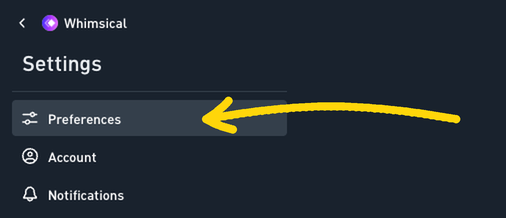
To open them, go to Settings, which you'll find under the current workspace name in the top left corner. Then choose Preferences.
Note: Notification and newsletter settings have their own Notifications page. See Customizing your notifications.
ModeCopied!Link to this section
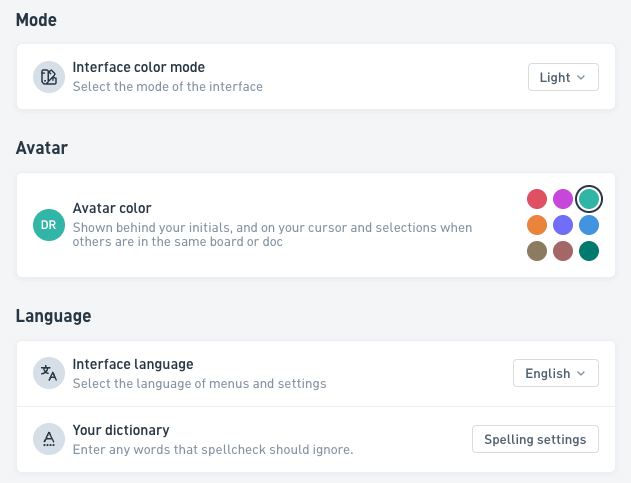
Use Interface color mode to choose Light, Dark or System, which follows your device's setting. Learn more in Dark mode in Whimsical.
AvatarCopied!Link to this section
Pick an Avatar color. It's shown behind your initials, and on your cursor and selections when others are in the same board or doc.
LanguageCopied!Link to this section
Use Interface language to choose the language of menus and settings. See Is Whimsical available in other languages? for the full list.
Under Your dictionary, select Spelling settings to add words that spellcheck should ignore. Learn more in Using spellcheck.
Desktop appCopied!Link to this section
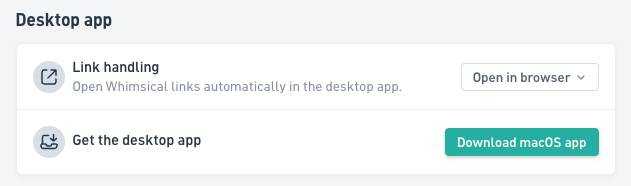
- Link handling: choose whether Whimsical links open in the desktop app. Pick Ask me each time, Open in desktop app or Open in browser. This is set in your browser. Inside the desktop app, select Manage on web to change it.
- Get the desktop app: shown in the browser, with a button to download the app.
- App icon: show the number of unread notifications on the app icon. Only in the desktop app.
- Haptic feedback: feel a tap on the trackpad when objects snap to guides on boards. Only in the desktop app on macOS.
AgentCopied!Link to this section
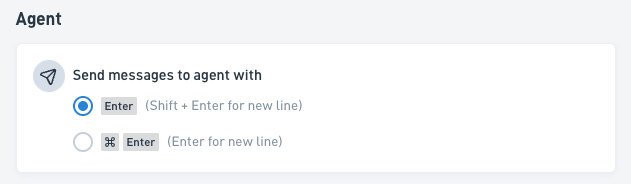
This section only shows if you have AI credits. Under Send messages to agent with, choose how to send a message:
Enter, withShift+Enterfor a new line.Command(Mac) orControl(PC) +Enter, withEnterfor a new line.
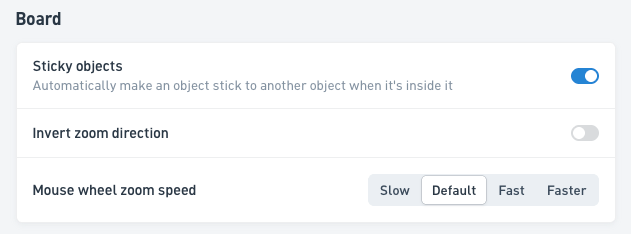
BoardCopied!Link to this section
- Sticky objects: automatically make an object stick to another object when it's inside it. Turn this off if you'd rather objects stay independent.
- Invert zoom direction: flip which way scrolling zooms while you hold
CommandorControl. Learn more. - Mouse wheel zoom speed: choose Slow, Default, Fast or Faster if zooming with a mouse wheel feels too slow or too fast.
Default themeCopied!Link to this section
For each workspace you're a member of, pick the color theme that new boards you create there get. Choose Workspace default to use the workspace's theme. Boards you already made keep their theme when you change this. Learn more in Custom colors and themes.
Note: Workspaces where you're a guest aren't listed here.